
Upload a custom modpack to your Minecraft server
A "modpack" can mean two different things, and the distinction matters before you upload anything:
- A client pack is what you install in your launcher. It includes client-only mods (shaders, mini-maps, animation overhauls) that the dedicated server has no use for, and it does not include the server jar or its libraries.
- A server pack is the version of the same pack meant to run a dedicated server. It contains the loader (Forge, NeoForge, Fabric), the right list of mods (no client-only ones), and any
config/overrides the pack ships with. CurseForge and Modrinth publish a separate Server Files download for most popular packs.
On CurseForge, the server pack usually doesn't appear next to the big Download button. Open the Files tab, then look in Additional Files below for an entry whose name ends in Server (or similar):
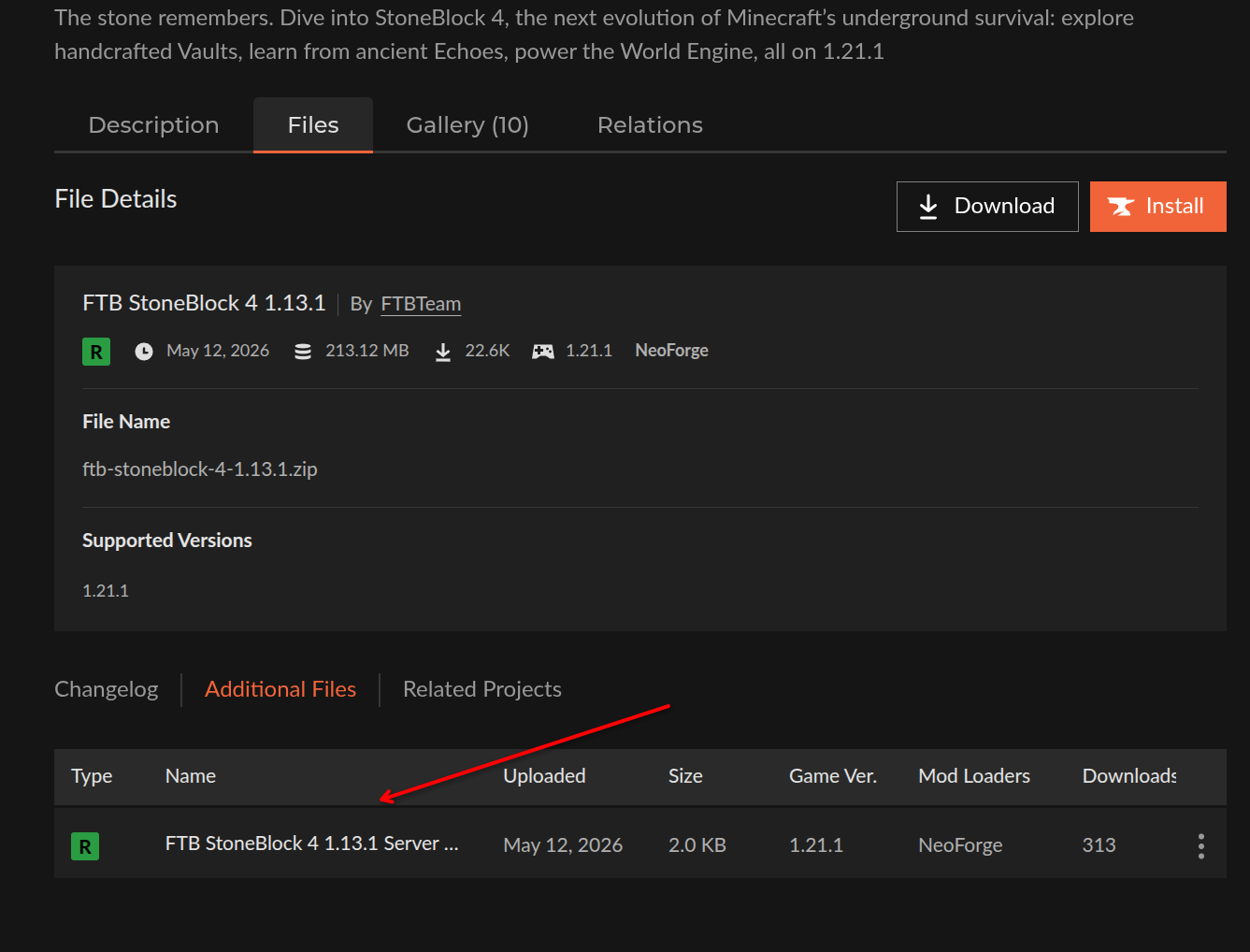
You can only run a server pack on Zaroz Cloud. If your modpack only ships a client zip, you'll need to build a server version yourself by keeping the loader and the server-compatible mods, and removing the rest.
Step 1: match the loader on your order
Before you upload anything, make sure your server is running the same loader your modpack targets. Open your order's Configuration page and pick the matching flavor (for example, Forge for a Forge pack, Fabric for a Fabric pack). If the loader does not match, the server will refuse to load most of the mods at boot.
Loader version matters too
A Forge 1.20.1 pack will not run on a Forge 1.19.2 server. The Minecraft version and the loader version both need to match what the pack expects. Check the pack's description on CurseForge or Modrinth for the exact versions before you change anything.
The change applies on the next restart. Wait for the server to be back up before continuing.
Step 2: upload the server pack
You have two ways to drop the files in: the dashboard file manager (good for small packs and quick edits) or SFTP (recommended for anything over a few hundred megabytes).
From the dashboard file manager
The file manager caps each upload at 10 files, so the fastest way to load a full pack is to upload its zip as a single file and extract it server-side.
- Open your server's File manager from the dashboard.
- Make sure you are at the root of your server files (you should see
mods/,config/,server.properties, andeula.txt). - Delete the existing
mods/folder if it has any mods left over from a previous setup. - Upload your server pack as a single
.zip. - Right-click the uploaded zip and pick Extract to unpack it into the current folder.
- If the contents extract into a subfolder (e.g.
pack-name/mods/...), movemods/,config/, and any other shipped folders up so they sit next toserver.propertiesat the root. - Delete the leftover
.ziponce you have verified the layout.
Drag-and-drop is fine for small edits
The 10-file cap is only on a single upload batch, so dragging in a handful of new mods or swapping one or two files works fine. Use SFTP or the zip flow above when you need to upload an entire pack.
Over SFTP
If you'd rather work over SFTP, open the Data Volume tab on your server's page to find the connection details:
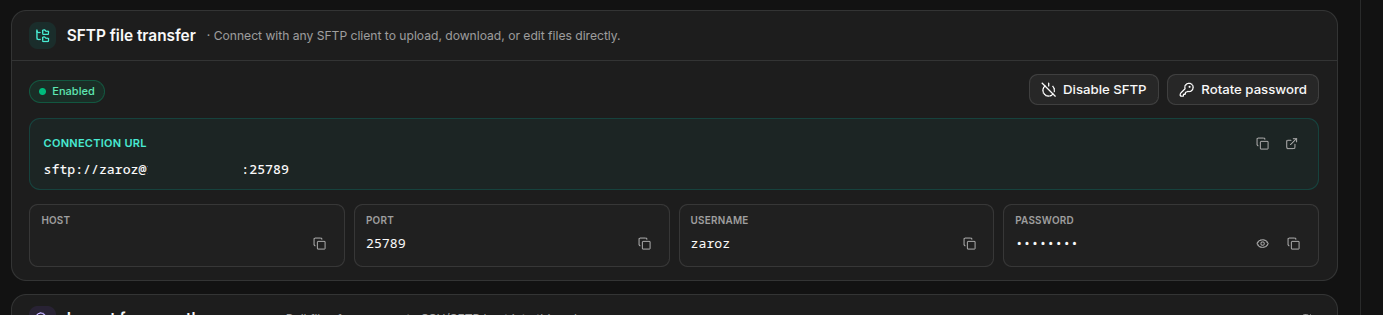
Copy the Connection URL straight into your SFTP client (or use the host, port, username, and password fields shown below it). The root of your server files lives at /server/. A connection URL pointing directly at the mods/ folder looks like this:
Code
Drop your server pack's mods/, config/, and any other shipped folders into /server/, overwriting what's there. Most clients (FileZilla, WinSCP, Cyberduck) will keep the upload going if you lose connection briefly, which matters for packs in the gigabyte range.
Final layout
Whichever method you used, the root of your server should end up looking similar to this:
Code
The exact folder list depends on the pack. As long as mods/ is in place and any config/ files the pack relies on are present, the server will pick them up on the next start.
Step 3: restart and watch the logs
Restart the server from the dashboard. The first boot of a fresh modpack is always the slowest one because the loader generates registries and writes config defaults. It's not unusual for a large pack to take three to five minutes to reach "Done" on the first start.
If the server crashes during boot, open the live console and look for the first ERROR line. The most common causes are:
- Missing dependency mod. The error names the mod that is missing. Add it to
mods/and restart. - Wrong Minecraft or loader version. The loader logs the version it loaded and the version the mod expected. Adjust on the configuration page.
- Client-only mod left in
mods/. The error mentions a client-only class (net.minecraft.client.*). Remove that mod frommods/.
Allocate enough memory
Heavy modpacks (300+ mods) usually want at least 6 GB of RAM, and some Create or industrial packs want 8 GB or more. You can upgrade memory from your order's plan page; the change applies on the next restart.
Going back to vanilla
To return to a vanilla server, delete the mods/ folder (and config/ if you want a clean slate) and restart. The server will start fresh as plain Minecraft for the loader version you have selected.
Frequently asked questions
Can I upload the modpack as a single .zip and unpack it on the server?
Yes, from the dashboard file manager. Upload the zip, right-click it, and pick Extract to unpack it in place. This is the easiest path when the pack is too large to extract on your machine, or when uploading thousands of small files individually would be slow. SFTP clients, on the other hand, treat zips as regular files: if you upload over SFTP, extract it from the file manager afterwards.
Where do I put a world from a singleplayer save or another server?
Upload it as the world/ folder at the root of your server files, replacing the existing one. If your loader uses a different dimension layout (for example, separate world_nether/ and world_the_end/ folders for Paper-style worlds), upload all three folders.
My pack uses a custom start script. Will Zaroz Cloud honor it?
The container ignores custom run.sh / start.bat scripts and launches the loader itself with the memory you allocated. The flags those scripts set (such as Aikar's flags) are applied automatically based on your plan, so you usually don't need them.
Will my modpack survive a server resize or rebuild?
Yes. Everything inside your server files (mods, configs, worlds) lives on a persistent volume. Resizing CPU or RAM, or rebuilding the container, does not delete it.