Show your custom domain in the FiveM server browser
This guide explains, end to end, how to get your custom domain (e.g. play.example.com) to appear in the FiveM in-game server browser when players search for your server, and how to make connect play.example.com work from the F8 console.
It covers:
- What Zaroz Cloud automatically sets up when you attach a domain to your order.
- The extra
server.cfglines you need to add for the domain to actually show in the server list (instead of the raw IP). - How the cfx.re listing backend really works under the hood, so you can debug it when something goes wrong.
- The advanced setup (your own reverse proxy) if you want full IP hiding for DDoS protection.
How a custom domain reaches the server list at all
Before we touch any config, you need a mental model of what FiveM actually does. There are two completely different code paths:
-
Joining the server by typing
connect <name>in the F8 console. This path uses DNS. The client looks up an SRV record (_cfx._udp.<your-domain>) to find the port, then an A record to find the IP, then connects. It never asks the cfx.re listing backend anything. -
Joining (or finding) the server through the in-game server browser. This path uses the cfx.re listing backend. The backend periodically pings your server on a URL like
https://<host>/dynamic.jsonto refresh the listing data. When a player clicks "Connect" in the browser, the listing backend hands the client aconnectEndPointsvalue telling it where to actually connect. ThatconnectEndPointsvalue is what determines whether the player sees your IP or your domain.
These two paths are independent: SRV records make the connect command work, but they have no effect at all on what the in-game browser shows. To control the browser, you have to tell your server what domain to advertise to the listing backend.
The official rules for how a client resolves a connect target are summarised in the Cfx.re proxy setup docs:
- Bare hosts (e.g.
play.example.com) resolve tohttp://play.example.com:30120/. - Hosts with a port (e.g.
play.example.com:30121) resolve tohttp://play.example.com:30121/. - URLs with a scheme (e.g.
https://play.example.com/) resolve as-is, using the default ports for that scheme (80/443).
That last rule is the one most relevant for the server list: if you want the listing to hand players a clean https://play.example.com/ URL (no port, no scheme to type), the listing backend must be able to reach your server at exactly that URL.
What Zaroz Cloud does for you
When you attach a domain to your order from the dashboard (Order page → External Access tab → Custom domain):
- We pick the parent domain you selected (e.g.
play.zaroz.cloud) and your chosen subdomain (e.g.myserver), giving a full hostname likemyserver.play.zaroz.cloud. - Via Cloudflare, we create an A record for that hostname pointing to the public IP that we've allocated for your order.
- For FiveM orders, we also create an SRV record at
_cfx._udp.<your-hostname>pointing back at the same hostname with the UDP game port your order uses. (For Minecraft this is_minecraft._tcp.<host>, for Factorio it is_factorio._udp.<host>.) - A background reconciliation job keeps both records in sync if your order is migrated to a different node or port.
The net effect of this is that as soon as the domain is attached, players can already join with connect myserver.play.zaroz.cloud from the F8 console, even though no port is specified. The SRV record tells the FiveM client which UDP port to use, and the A record gives it the IP.
What this does not do on its own: it does not change what the in-game server browser displays. That still requires changes in your server.cfg.
Minimal server.cfg setup for the server browser
If you only need the SRV-based connect flow (typing the address into the F8 console), you don't have to touch server.cfg at all. The records we create are enough.
If you want the server browser to show your domain when players search your server, add these lines to your server.cfg, near the top:
Code
Use the full URL form, not just the hostname:
- The scheme (
http://) tells the listing backend that the server speaks plain HTTP, not HTTPS. The default FXServer endpoint is HTTP, not HTTPS. - The port (
:30120) is the actual game/HTTP port of your container. If you omit it, the listing backend assumes port 80, which is not what FXServer listens on, and the heartbeat will fail.
On Zaroz Cloud, your <port> is the value you can see at the top of your server.cfg in the endpoint_add_tcp "0.0.0.0:<port>" line that our entrypoint writes for you on every container start. You can also read it straight from the dashboard, under Order page → External Access → Player connection:
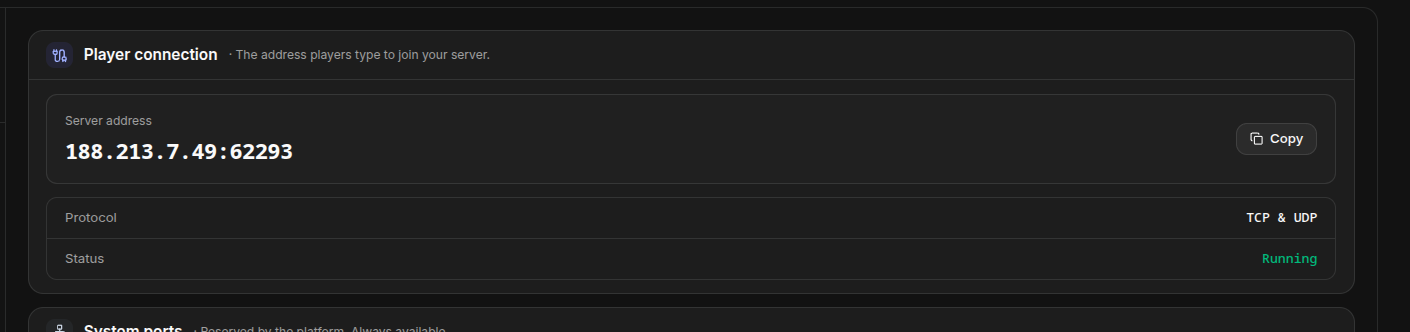
The part after the colon in Server address is the port you need to plug into sv_listingHostOverride.
After a restart, the master should pick up the override within a few minutes and start advertising your hostname in the listing. See the "How to verify it worked" section below.
Why each line is needed
sv_forceIndirectListing true
From the official docs: "prevents the server list from advertising your server using its actual IP".
If this is off, the listing keeps publishing the raw IP regardless of what sv_listingHostOverride says, because the backend assumes any client can connect directly to the source IP and that the host override is only for the backend's heartbeat. With it on, the IP is suppressed and the connectEndPoints field carries the hostname instead.
sv_listingHostOverride
From the official docs: "makes the server list backend request https://server1.example.com/ instead of the default."
It serves two roles at once:
- Where the backend pings you. The cfx.re heartbeat hits
<host>/dynamic.json,<host>/info.json, and<host>/players.jsonat this URL. - What players see/connect to. When indirect listing is on, this same value gets passed back to clients as
connectEndPoints, which is what the in-game "Connect" button uses.
Because of that dual role, the value must be reachable from the public internet. On Zaroz, your container's HTTP endpoint is bound to 0.0.0.0:<your-port> and your A record already points the hostname at the right IP, so http://<host>:<port>/ works without any extra infrastructure.
What about sv_listingIpOverride?
You don't normally need to set this on Zaroz Cloud. From the official docs: "this value is only needed if the server list backend can't guess the IP to query itself, and is not provided to any front-end connection."
Our entrypoint already writes the right sv_listingIpOverride for the public IP we've allocated to you on every container start. It is what the master uses to find your dynamic.json when there is no host override. With sv_listingHostOverride set, the override IP is mostly redundant but harmless.
What about sv_endpoints?
sv_endpoints is "the actual endpoint your server is hosted on, or one or multiple server endpoint proxies".
On a vanilla setup with no proxy, you don't need it: the listing backend will use the IP it pings and the port it discovered. You only set it when you put your own reverse proxy or DDoS tunnel between players and the FXServer, and players need to be told to connect to the proxy's IP and port, not the FXServer's.
DNS records, in full
In case you want to verify what we've put on the Cloudflare side, this is exactly what a working Zaroz custom domain looks like:
Code
Fields, in order: priority (0), weight (0), port (the UDP game port of your order, e.g. 32541), target (your hostname, terminating with a dot).
The IP and port are placeholders; they will reflect whatever the kernel has allocated to your order at the time the record is created. If your order is moved to another node or its port reassigned, the reconcile job rewrites both records.
How to verify it worked
After you restart your server with the new server.cfg, you have three ways to check things are healthy.
1. Hit your endpoints in a browser
These should all return JSON (or at least HTTP 200):
http://<your-domain>:<your-port>/info.jsonhttp://<your-domain>:<your-port>/players.jsonhttp://<your-domain>:<your-port>/dynamic.json
If any of these times out or returns a connection error, the master cannot reach you either. Double-check your firewall and that the URL in sv_listingHostOverride matches what your container is actually listening on.
2. Look at the server console
After boot, look for log lines from [citizen-server-impl]. A healthy server will eventually log successful heartbeats. If you see Server list query returned an error: server request failed for endpoint http://<host>:<port>/dynamic.json, the master tried to reach the override and failed; see the server list query error guide for the most common reason (license-key cache lag).
3. Use the public servers API
Go to https://servers.fivem.net/api/servers/single/<your-cfx-id> (the cfx ID is the short alphanumeric string in your in-game listing URL) and look for the connectEndPoints field in the JSON. Once your override has propagated, it should contain your domain, not the raw IP.
Advanced: using your own reverse proxy
The basic setup above hides your IP from the server list, but a determined attacker can still find it by hitting the game port directly with the right packets. If you want full IP hiding (for example, behind a Cloudflare Spectrum tunnel or your own nginx box on a separate IP), you need a proper reverse proxy.
A reference layout, adapted from the official proxy setup docs and the community nginx gist:
Code
With this proxy in place, the server.cfg becomes:
Code
Two things to note about this advanced setup:
- You cannot reuse the Zaroz-managed subdomain for this (e.g.
myserver.play.zaroz.cloud), because that A record is already pointing at your container's IP and we manage it automatically. Use a domain you control (a custom domain you own, with its DNS hosted on Cloudflare or wherever else). sv_proxyIPRangesis required, otherwise FXServer will reject theX-Real-IPheader that the proxy sets, and it will also keep enforcing the per-IP rate limiter against your proxy's single IP, which collapses fast.
Common pitfalls
- Forgetting the scheme or the port in
sv_listingHostOverride. Writingsv_listingHostOverride "myserver.play.zaroz.cloud"(just the hostname) makes the listing backend tryhttp://myserver.play.zaroz.cloud:30120/regardless of what port your order is actually using, which fails. Always use the full URL form with the right scheme and port. - Not setting
sv_forceIndirectListing true. Without it, your IP keeps leaking in the listing even though the override is set, because the backend treatssv_listingHostOverrideas backend-only and falls back to advertising the raw IP to clients. - Expecting SRV records to fix the server browser. SRV records only affect the F8
connectcommand. The server browser uses the listing backend, which only respectssv_listingHostOverrideandsv_forceIndirectListing. - DNS propagation. Cloudflare propagates fast (typically under a minute) but the cfx.re listing backend has its own cache. Expect a few minutes after a config change before the new
connectEndPointsshows up in the public servers API.
When to contact support
If you've followed this guide and:
- The endpoints (
/info.json,/dynamic.json,/players.json) are reachable in a browser, and - Your in-game server still shows the raw IP, or
- The
connectEndPointsinhttps://servers.fivem.net/api/servers/single/<cfx-id>keeps reverting to the IP after a restart,
send us your server.cfg (with the rcon_password and sv_licenseKey redacted), the cfx.re ID of your server, and your order ID. We can check whether the listing backend is reaching us and confirm there's nothing on our side rewriting your override.