# Mount your SFTP files as a drive on Windows or Linux
You can make your server files appear in Windows File Explorer or in a regular Linux folder. This lets you open, drag, and edit them with programs on your computer without manually downloading and uploading every file.
The drive is **not a copy**: it shows what is on the server right now. If you delete a file from the drive, you also delete it from the server.
:::warning{title="Back up important files before changing them"}
Do not edit worlds, databases, or other files while the server is writing to them. For those changes, stop the server from the dashboard first and wait until it shows as offline. Losing your Internet connection while saving can also leave a file incomplete.
:::
## Before you start: get the four connection details
1. Open your server's page in the Zaroz Cloud dashboard.
2. Open the **Data volume** tab.
3. Find the SFTP section and keep that page open.
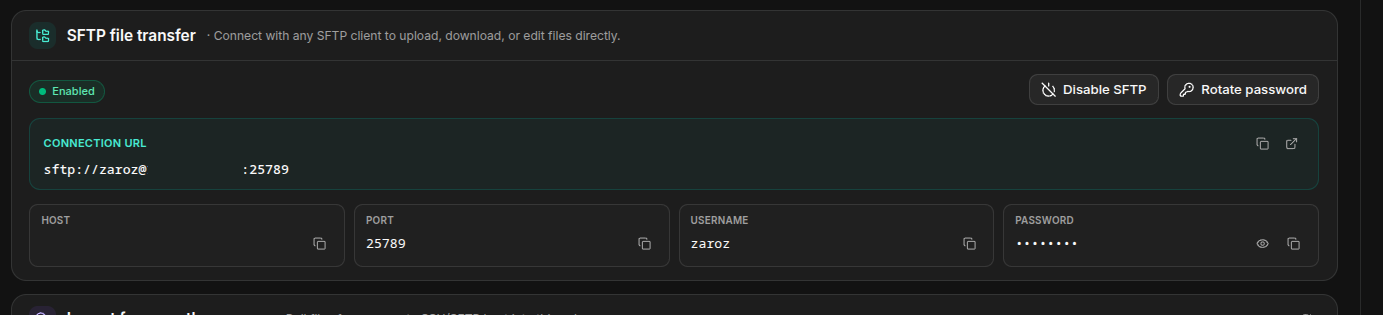
You will need these four exact values:
| In this guide | Copy it from | Made-up example |
| --- | --- | --- |
| `USERNAME` | Username | `zaroz` |
| `HOST` | Host | `sftp.example.net` |
| `PORT` | Port | `2022` |
| Password | Password | Do not paste it into any command |
Your regular server files are in the `/server/` directory. This path matters too: connecting only to `/` leaves you one level above them.
:::danger{title="Do not share the password"}
Anyone with these details can read, change, or delete your server files. Do not include them in screenshots, public messages, or commands you plan to share.
:::
Choose your operating system:
- [Windows 10 or 11](#windows-10-or-11)
- [Linux with a graphical file manager](#linux-with-a-graphical-file-manager-the-easiest-option)
- [Linux with a normal mount folder](#linux-with-sshfs-a-normal-mount-folder)
## Windows 10 or 11
Windows needs two free components to understand an SFTP drive: **WinFsp** and **SSHFS-Win**. You only install them once.
### Step 1: install SSHFS-Win
The easiest option is `winget`, which is included with current Windows 10 and 11 installations:
1. Open the **Start** menu.
2. Type `Terminal`.
3. Open **Terminal** or **Windows PowerShell**. You do not need to run it as administrator.
4. Paste this command and press Enter:
```powershell
winget install SSHFS-Win.SSHFS-Win
```
5. Accept any installer prompts and wait for it to finish.
6. Close every File Explorer window, then open it again.
If Windows says it cannot find `winget`, install the components manually:
1. Download and run the latest [WinFsp](https://github.com/winfsp/winfsp/releases/latest) installer with its default options.
2. Download the latest [SSHFS-Win](https://github.com/winfsp/sshfs-win/releases/latest) installer. Choose the `x64` file on almost every current computer.
3. Install it with the default options.
:::tip{title="If the path is not recognized in the next step"}
Restart Windows after installing both components. Reopening File Explorer is normally enough, but restarting ensures that the WinFsp service is running.
:::
### Step 2: build the drive path
Windows does not use the `sftp://...` URL shown in the dashboard here. It needs a special SSHFS-Win path:
```text
\\sshfs.r\USERNAME@HOST!PORT\server
```
Replace `USERNAME`, `HOST`, and `PORT` with the dashboard values without changing any other characters. With the made-up details in the table, for example, it would be:
```text
\\sshfs.r\zaroz@sftp.example.net!2022\server
```
Pay attention to these details:
- It starts with **two backslashes**: `\\`.
- There is `.r` after `sshfs`. The `r` makes `/server` relative to the remote root.
- Use `!`, not `:`, between the host and port.
- The end is `\server`, with no `/` or extra trailing slash.
- Do not put the password in the path.
### Step 3: assign a drive letter
The dialog should look like this, with your own details in the **Folder** field:
Map Network Drive— □ ×
Specify the drive letter and network folder that you want to connect to.
Drive:Z:
Folder:\\sshfs.r\USERNAME@HOST!PORT\server
Reconnect at sign-in
CancelFinish
1. Open **File Explorer**.
2. Select **This PC** in the left sidebar.
3. Open the three-dot menu in the toolbar and select **Map network drive**. On some versions it appears directly under the **Computer** tab.
4. Choose an unused letter, such as `Z:`.
5. Paste the path you just built into **Folder**.
6. Enable **Reconnect at sign-in** if you want Windows to remember the drive.
7. Select **Finish**.
8. When the credential window appears, enter the SFTP `USERNAME` and password from the dashboard. Do not use your email address or Microsoft account password.
9. Enable **Remember my credentials** only on your own trusted computer.
10. Select **OK**.
The first connection can take a few seconds. The new drive will then appear under **This PC**. Open it: you should see your server's folders and files, not an empty folder.
:::info{title="A red X does not always mean it is broken"}
If Windows starts before Internet access is available, a remembered drive can appear with a red X. Double-click it after you are online; it will normally reconnect. Enter the SFTP password again if prompted.
:::
### Alternative: connect the drive with a command
You can do the same thing from Terminal. Replace the letter and path with your own:
```powershell
net use Z: \\sshfs.r\USERNAME@HOST!PORT\server /persistent:yes
```
Windows asks for the password, so you do not have to put it in the command. `/persistent:yes` remembers the drive for later sign-ins.
### Disconnect the drive on Windows
First close every editor, terminal, or window using files on the drive. Then right-click the drive under **This PC** and select **Disconnect**.
You can also disconnect it from Terminal:
```powershell
net use Z: /delete
```
This only removes the drive from your computer. It **does not delete the remote files**.
## Linux with a graphical file manager: the easiest option
If you only want to drag files occasionally, your file manager probably already supports SFTP and you do not need to install SSHFS. The connection appears in the sidebar as a network location, although it does not provide a normal local path that every program can use.
### GNOME Files / Nautilus
1. Open **Files**.
2. Select **Other Locations**.
3. Find **Connect to Server**.
4. Enter this address after replacing the three uppercase values:
```text
sftp://USERNAME@HOST:PORT/server/
```
5. Select **Connect**.
6. Enter the SFTP password when prompted.
7. Save the password only if you trust this computer's user account and keyring.
### KDE Dolphin
1. Open **Dolphin**.
2. Press ++ctrl+l++ to edit the location bar.
3. Paste the same `sftp://USERNAME@HOST:PORT/server/` address and press Enter.
4. Enter the username and password if Dolphin asks for them again.
5. Right-click the sidebar and add the location to **Places** if you want to keep a shortcut.
To disconnect, select the eject icon beside the location. Merely closing the file-manager window may leave the connection active. Disconnecting does not delete anything from the server.
## Linux with SSHFS: a normal mount folder
Use this method if you want the connection to have a path such as `/home/your-user/Zaroz` that programs outside the file manager can open.
### Step 1: install SSHFS
Open a terminal and install the package for your distribution:
**Ubuntu or Debian**
```bash
sudo apt update
sudo apt install sshfs
```
**Fedora**
```bash
sudo dnf install fuse-sshfs
```
**Arch Linux**
```bash
sudo pacman -S sshfs
```
If `sudo` asks for a password, it wants your **computer's** password, not the Zaroz SFTP password.
### Step 2: create the folder where the drive will appear
This command creates a folder named `Zaroz` inside your home folder:
```bash
mkdir -p "$HOME/Zaroz"
```
You may give it another name, but then you must change `$HOME/Zaroz` in every command below.
### Step 3: mount `/server`
Paste the following command after replacing `USERNAME`, `HOST`, and `PORT`. Keep the separate lines as shown; the `\` characters at the end mean that the command continues:
```bash
sshfs USERNAME@HOST:/server "$HOME/Zaroz" \
-o port=PORT \
-o reconnect,ServerAliveInterval=15,ServerAliveCountMax=3
```
The first connection may show a question like this:
```text
Are you sure you want to continue connecting (yes/no/[fingerprint])?
```
Type the full word `yes` and press Enter. Then paste the SFTP password from the dashboard and press Enter again.
:::info{title="Nothing appears while you type a password"}
This is normal: the terminal does not show dots, asterisks, or letters while you enter a password. Paste it once and press Enter.
:::
Now open the `Zaroz` folder in your file manager. You can also check it from the terminal:
```bash
ls "$HOME/Zaroz"
```
The `ServerAliveInterval` and `reconnect` options help detect a lost connection and reconnect it. Even so, if your Internet connection drops while a file is open, close that file and reopen it after the connection returns.
### Unmount the folder on Linux
Do not delete the folder to disconnect it. First close programs using its files, then run:
```bash
fusermount3 -u "$HOME/Zaroz"
```
If your distribution says that `fusermount3` does not exist, use the older command name:
```bash
fusermount -u "$HOME/Zaroz"
```
The local folder remains in place, empty and ready for the next mount. To reconnect after restarting your computer, repeat the `sshfs` command from the previous step.
## Fix the most common problems
### `Connection timed out` or `Connection refused`
- Copy the SFTP **host** and **port** again from **Data volume**.
- Do not use the game, web, or RCON port.
- Check that your computer is online and that a firewall or workplace network is not blocking that port.
### `Permission denied` or repeated password prompts
- Copy the username and password again; they are case-sensitive.
- Make sure you are using the SFTP credentials from **Data volume**, not your dashboard login.
- If Windows saved an old password, open **Credential Manager → Windows Credentials**, remove the SFTP host entry, and connect again.
### The drive is empty or does not contain the expected files
The correct remote path is `/server/`.
- On Windows, confirm that the path starts with `\\sshfs.r\` and ends with `\server`.
- On Linux, confirm that the command's source contains `:/server`.
- In a Linux file manager, confirm that the URL ends with `/server/`.
### Windows cannot find the network name
- Confirm that WinFsp and SSHFS-Win are installed.
- Restart Windows once.
- Check the two opening `\` characters, `.r`, the `!` before the port, and the final `\server`.
- Do not paste an address beginning with `sftp://` into **Map network drive**.
### Linux says `mountpoint is not empty`
Unmount any previous connection before mounting again. Do not keep local files inside `$HOME/Zaroz`: they are hidden while SFTP is mounted and reappear after it is unmounted.
### Linux says `target is busy` while unmounting
A program is still using the folder. Close editors and file-manager windows, and make sure no terminal is currently inside it:
```bash
cd "$HOME"
fusermount3 -u "$HOME/Zaroz"
```
### The drive freezes after losing Internet access
Close programs trying to access it, unmount or disconnect the drive, and reconnect it. A write in progress when the network went down may have failed, so inspect that file before you continue working.
### `WARNING: REMOTE HOST IDENTIFICATION HAS CHANGED!`
Do not bypass this warning or blindly delete the saved key. First check that you copied the correct SFTP host from **Data volume**. If the host is correct and the warning remains, contact Zaroz support before entering your password: the server key may have legitimately changed, but the warning exists to protect you from connecting to an impostor.
## Frequently asked questions
Do the files also take up space on my computer?
Not as a complete copy. Programs read and write the data over the Internet when they need it. Individual applications may create their own local caches or temporary files.
Can I work without an Internet connection?
No. This is a remote drive, not a synchronization tool. To work offline, download a copy first and upload it again when finished, taking care not to overwrite newer changes.
Does the game server have to be running?
The SFTP connection belongs to the data volume and normally works while the game process is stopped. In fact, you should stop the server before changing worlds, databases, or many files at once.
Why is it slower than my normal drive?
Every operation travels to the server over an encrypted connection. Opening a folder containing thousands of small files can be much slower than opening a local folder. A dedicated SFTP client such as WinSCP or FileZilla may be more convenient for a very large one-time transfer.
Does disconnecting or unmounting delete anything?
No. It only removes the shortcut from your computer. Deleting files *inside* the drive while it is connected does delete them from the server.